
Link your Hyperliquid to GT App account
This guide explains how to create Hyperliquid API keys and connect your account to GT APP for automated trading.
Before starting, make sure you have already registered and connected your wallet to Hyperliquid.
- Open your GT App account and go to the Exchange Accounts page.
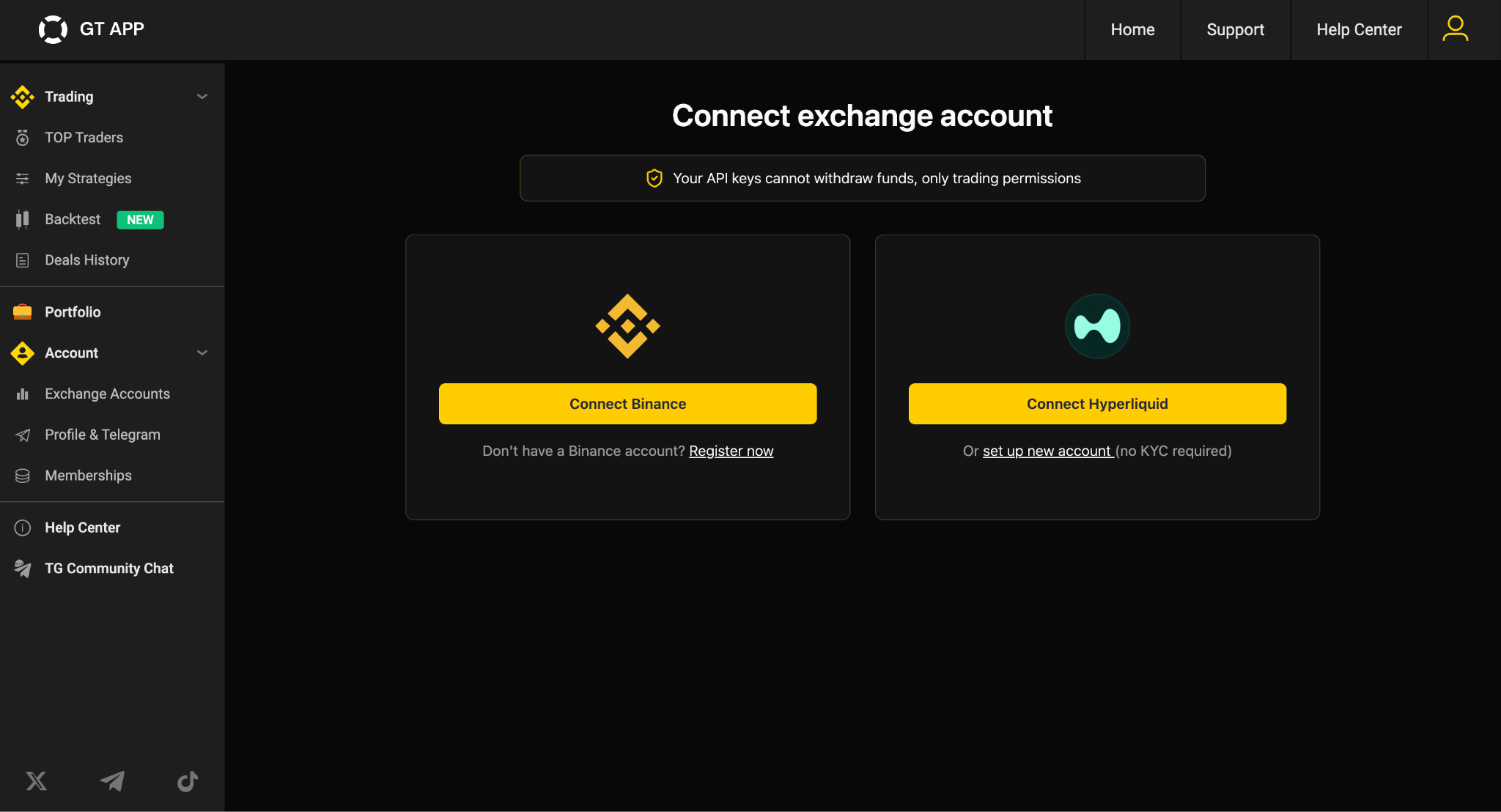
Select Connect Hyperliquid. If you already have an account connected, you can add another connection. Otherwise, follow the instructions to create a new one (instructions).
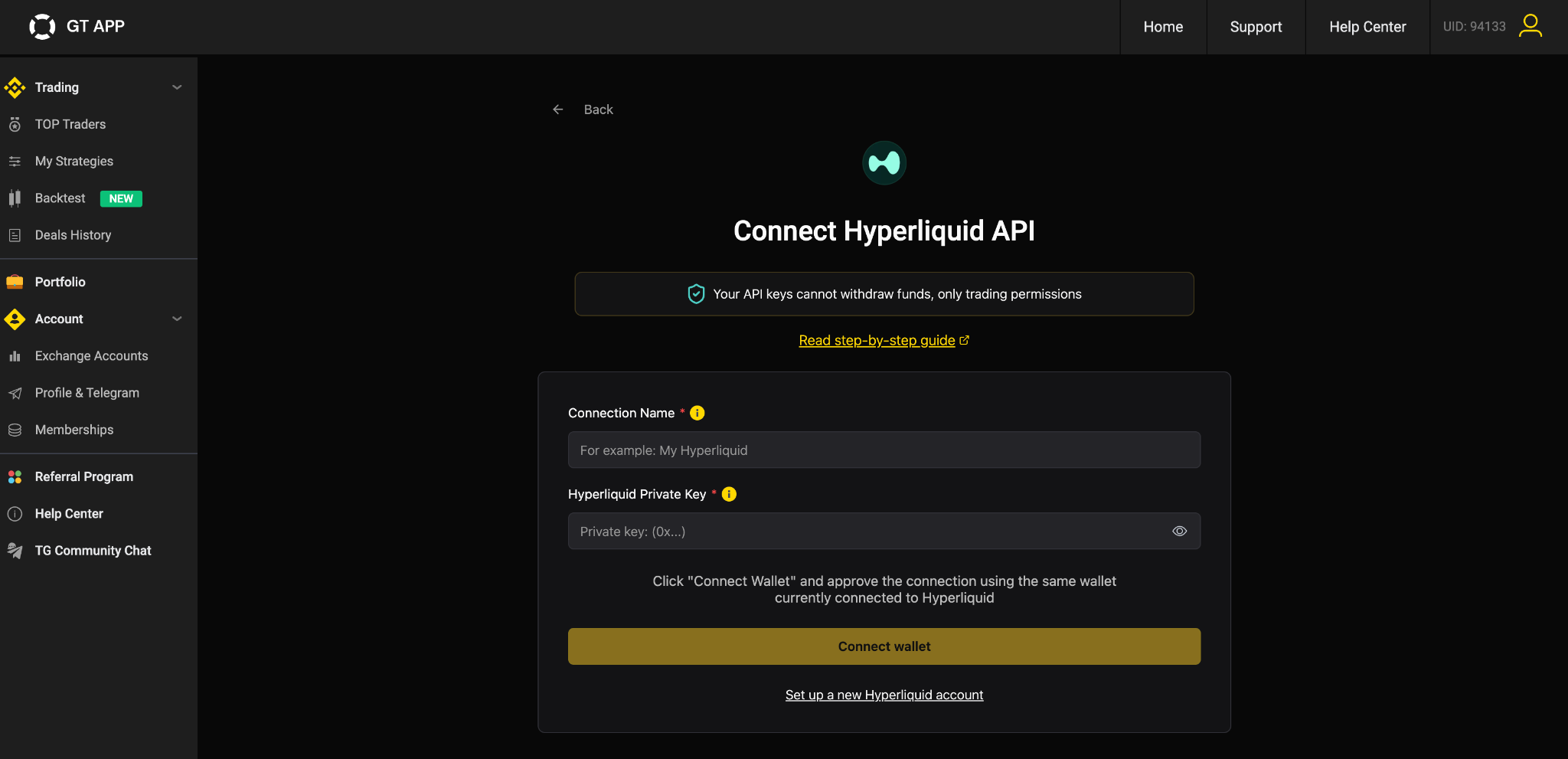
Here you will need to enter:
- A connection name
Your Hyperliquid Private Key
The Private Key will be generated in Hyperliquid in the next steps.
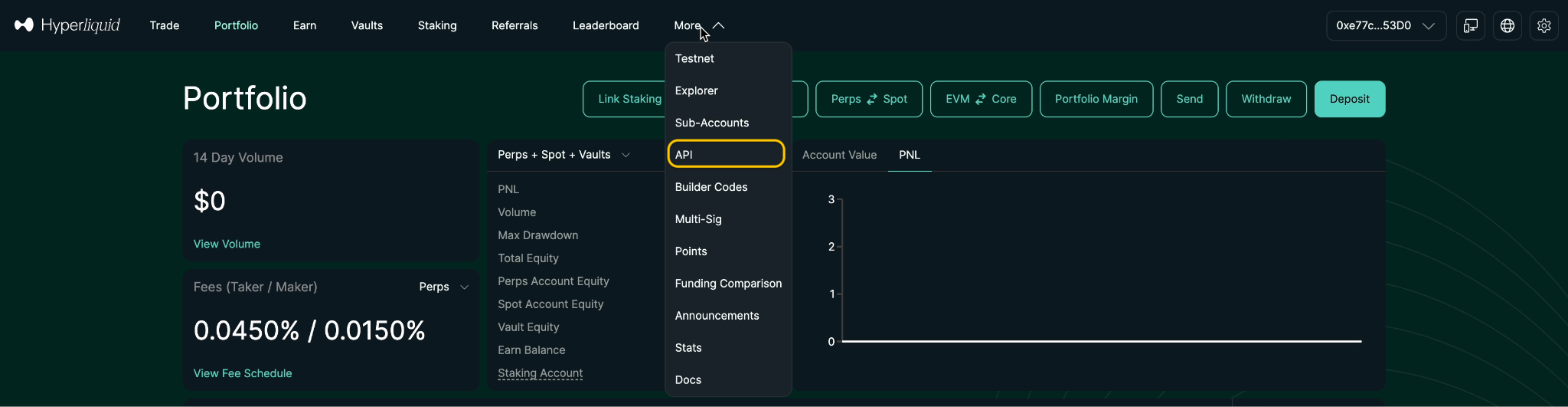
In Hyperliquid, go to the More menu and select API.
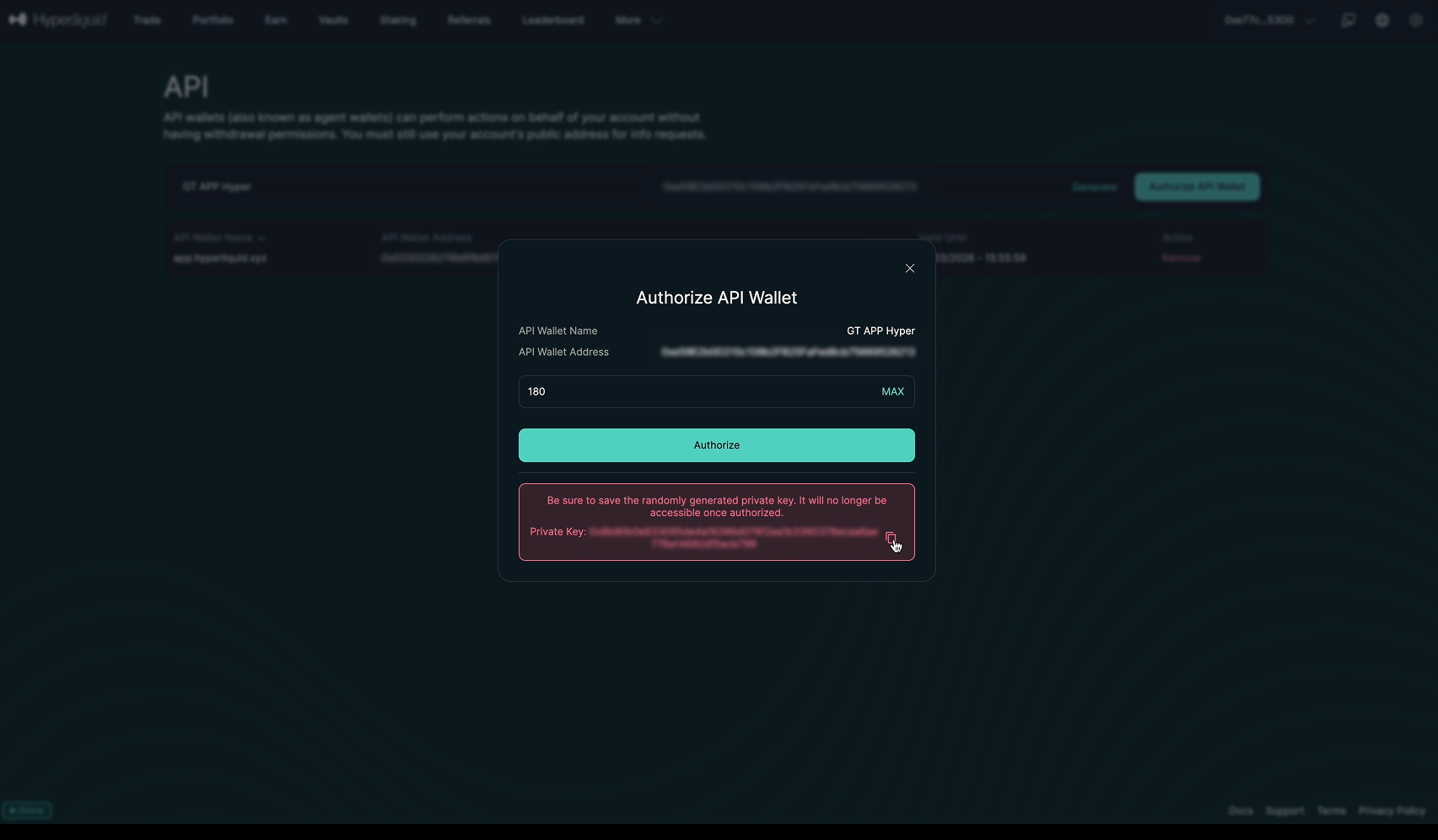
**Enter a name for your API key (for example: My GT APP Hyper) and click “Generate”. **
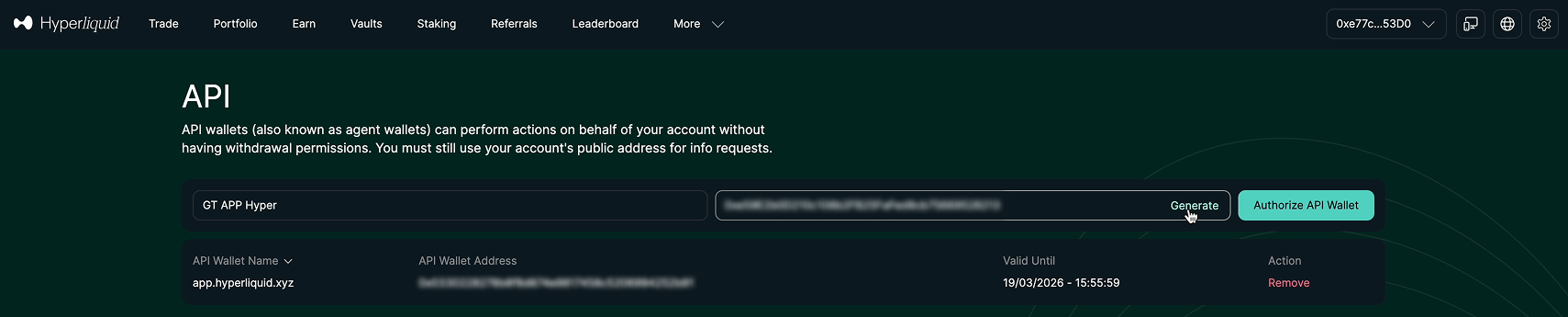
After generating the API key, you will need to authorize the API wallet.
- In the Authorize API Wallet window, set the validity period for the key.
- We recommend selecting MAX (180 days) so the API key remains active for 180 days.
- Copy and securely save the Private Key.
- Click Authorize.
Important:
- The API key will expire after the selected validity period (up to 180 days). After it expires, you will need to generate and authorize a new key and update it in GT APP.
Once authorized return to GT APP → Exchange Accounts → Connect Hyperliquid.
Enter any connection name and paste your Private Key.
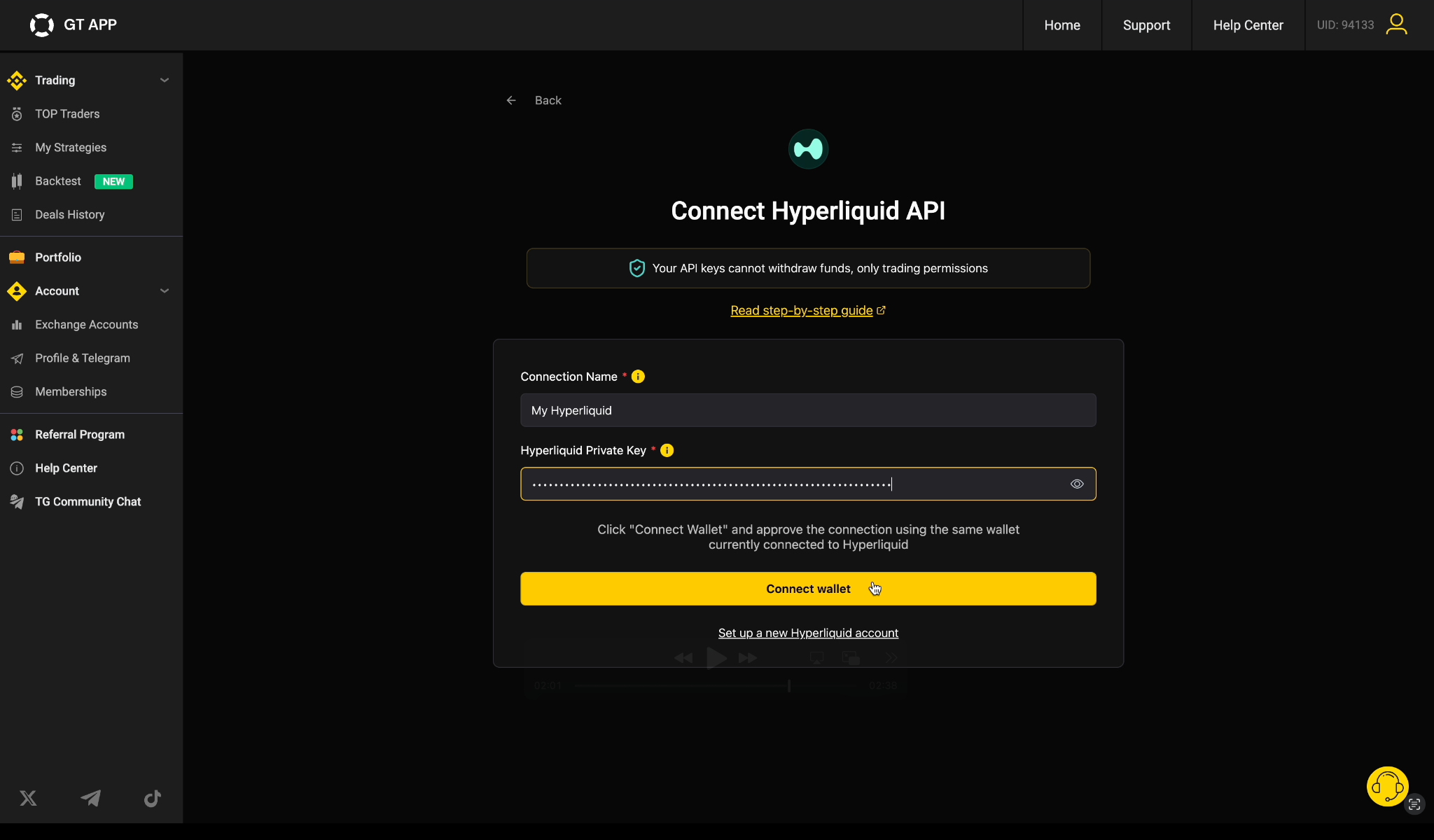
Click “Connect Wallet” and approve the request using the same wallet connected to Hyperliquid.
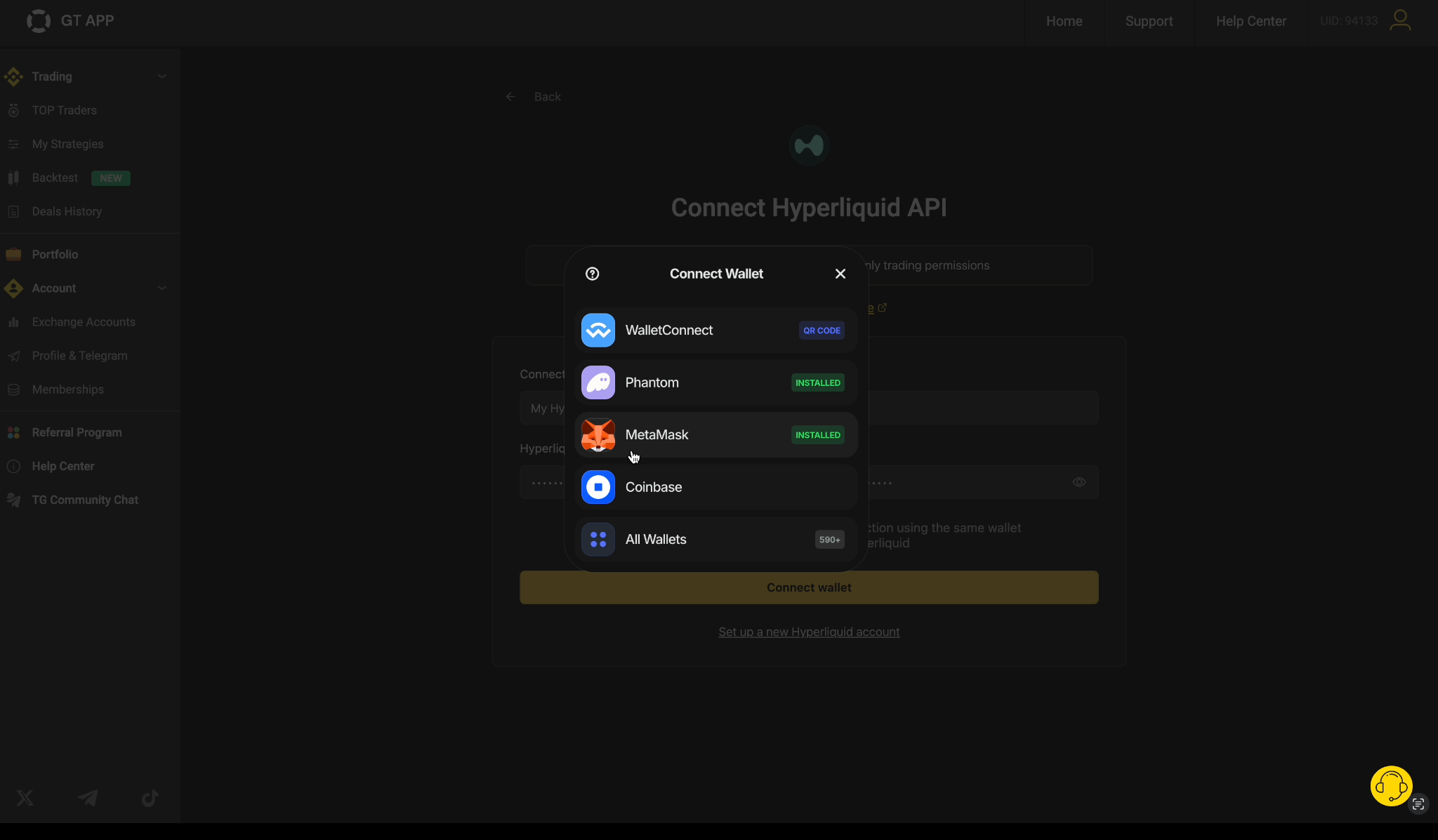
Once the connection is successful, your Hyperliquid account will appear in the Exchange Accounts section in GT APP.
You can now start running strategies through GT APP using your Hyperliquid account.