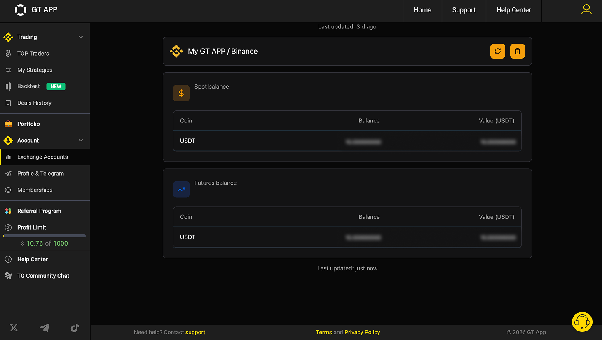
How to connect your Binance account to GT App and to launch trading.
GT APP offers two connection methods:
- Fast API Connection – quick connection via Binance authorization
- Manual API Connection – connect using API Key and Secret Key
Important
Fast connection is available only for Binance main accounts. Binance sub accounts can only be connected manually via API keys.
GT APP will not have access to transfer or withdraw your assets — only trading permissions will be enabled.
Open Exchange Connections.
- Log in to your GT APP account.
- Click Exchange Accounts in the left sidebar menu (1).
- Click Connect Binance (2).
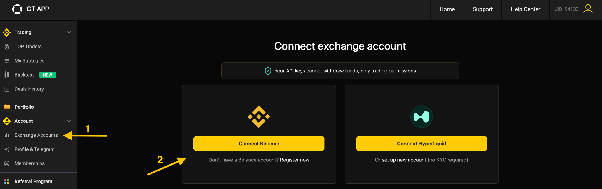
You will see two connection options:
- Fast API Connection
- Manual API Connection
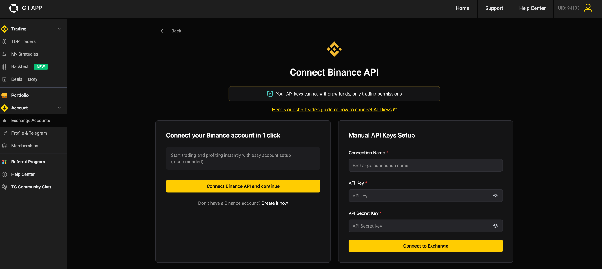
Choose the connection method that fits your account and follow the instructions below.
Option 1 — Fast API Connection
Works only for Binance main accounts.
- Make sure you are logged in to your Binance account.
- Go to Account → API Management.
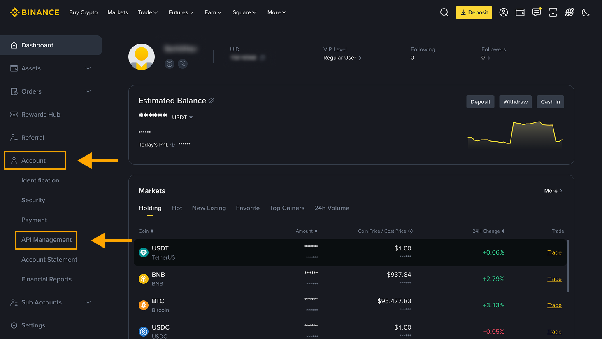
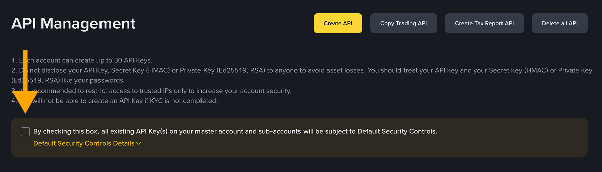
- Make sure “Default Security Controls” are unchecked.
GT APP executes trading strategies through secure trading infrastructure, so API requests may originate from different system IP addresses. To allow the connection to work properly, this option should be disabled.
Disabling this option only affects the API connection and does not reduce the security of your Binance account.
Important security notes:
- GT APP cannot withdraw your funds.
- The API is used only for trading operations.
- Withdrawal permissions remain disabled on the API key.
- Return to GT APP.
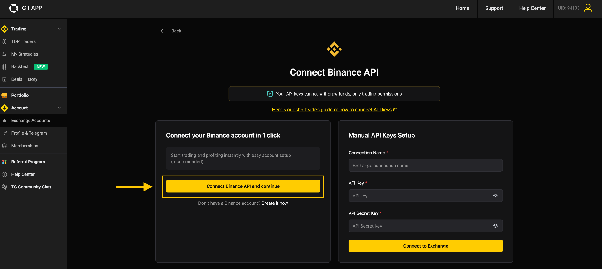
- Click Connect under Fast API Connection.
- Confirm the connection with Binance authorization.
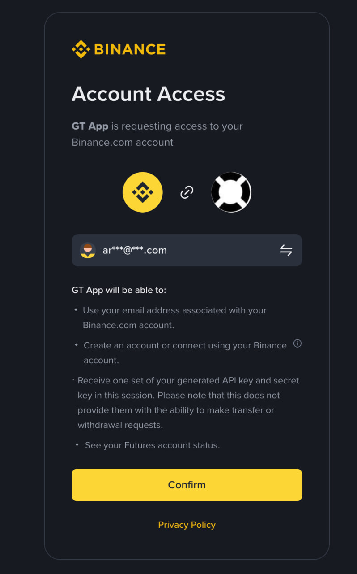
Once approved, your Binance account will appear in GT APP and you can start running strategies.
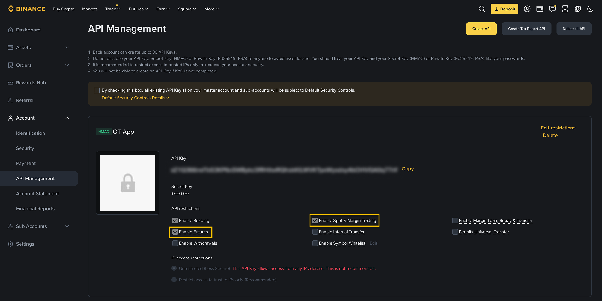
To verify the settings, go to your Binance account → API Management and open the API key created via Fast API Connection. Ensure that Spot/Margin and Futures permissions are enabled. If Futures is not enabled, only spot trading will be available.
Option 2 — Manual API Connection
Use this method if:
- You want to connect a Binance sub account
- You prefer manual API setup
- Make sure you are logged in to your Binance account.
- Go to Account → API Management.
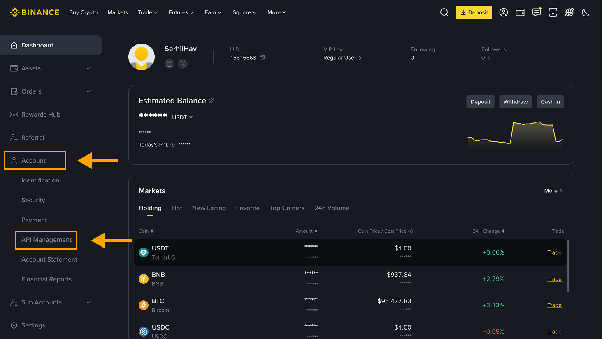
- Make sure “Default Security Controls” are unchecked.
GT APP executes trading strategies through secure trading infrastructure, so API requests may originate from different system IP addresses. To allow the connection to work properly, this option should be disabled.
Disabling this option only affects the API connection and does not reduce the security of your Binance account.
Important security notes:
- GT APP cannot withdraw your funds.
- The API is used only for trading operations.
- Withdrawal permissions remain disabled on the API key.
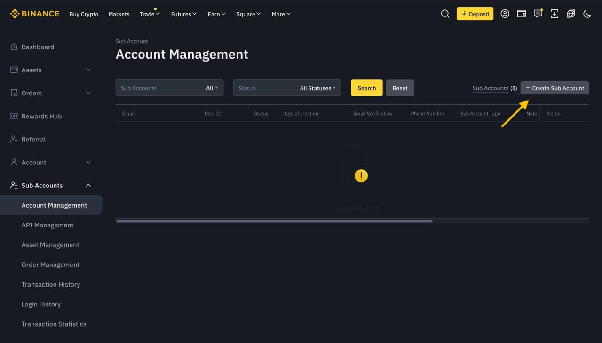
- Go to Sub Accounts Management page and click “Create Sub Account”.
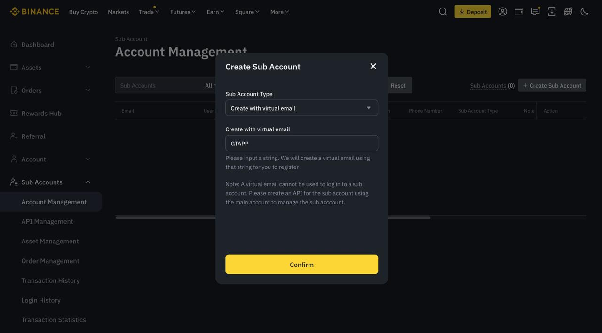
- We recommend selecting “Create with virtual email” and naming it, for example, GTAPP.
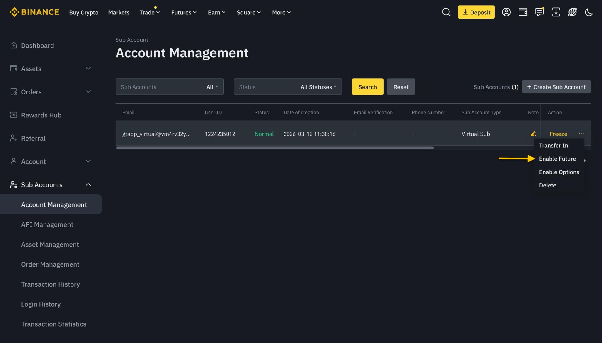
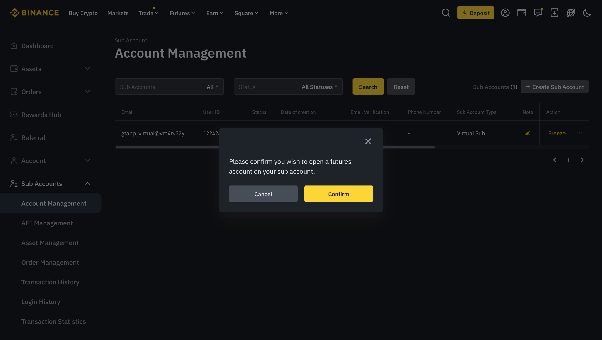
- Once the sub account is created, click “Enable Futures”, confirming that you want to open a futures account for the sub account.
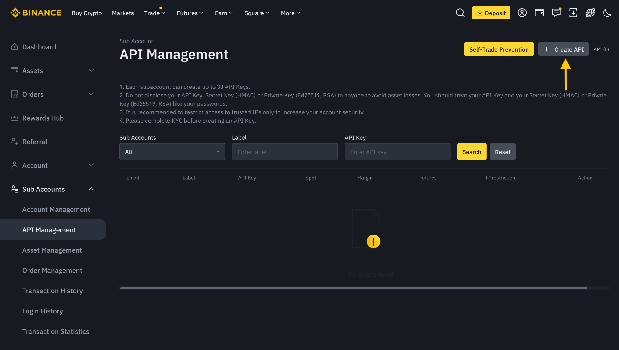
- Go to API Management in your sub account and click “Create API”.
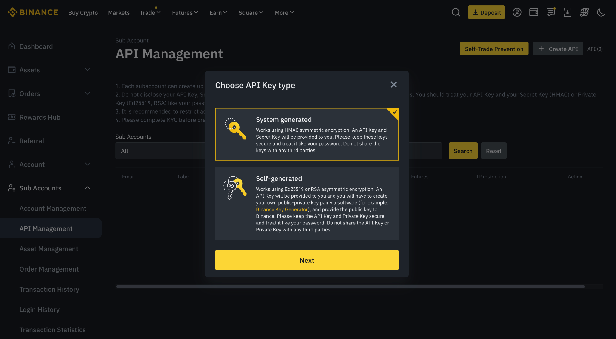
- Choose “System Generated” API Key (HMAC symmetric encryption).
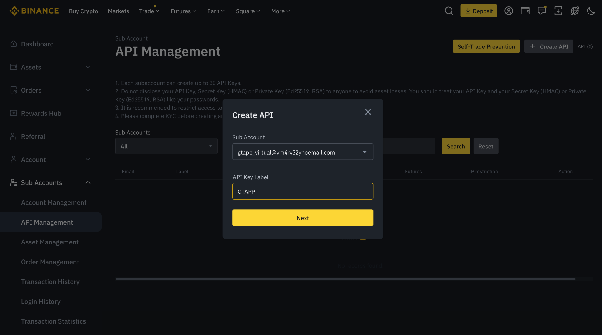
- Select the sub account you created previously and label the API key, for example, GTAPP.
- A new Binance page with API key settings will open.
In the API settings, please enable:
✅ Enable Futures
✅ Enable Spot & Margin Trading
Please copy your API Key and Secret Key and save them somewhere safe.
Note:
The Secret Key is displayed only once at the moment it is created. If you do not save it now, you will not be able to see it again.
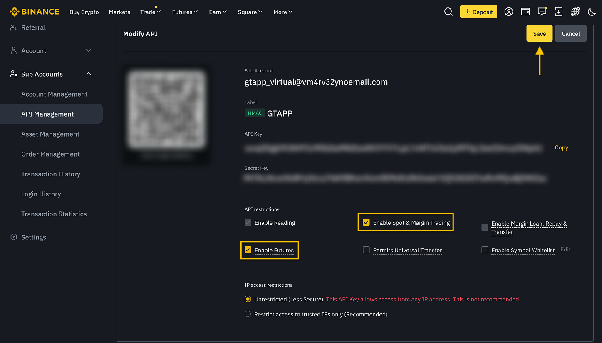 Click Save.
- Return to GT APP, enter a Connection Name (for example: My GT APP).
Paste your API Key and Secret Key.
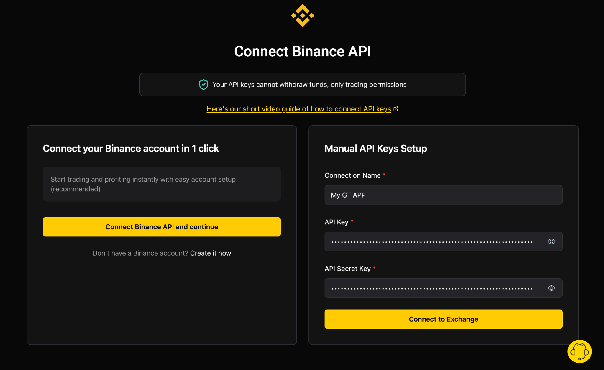
- Click the “Connect to exchange” button. Confirm the connection with Binance authorization.
Once approved, your Binance account will appear in GT APP and you can start running strategies.
How to Fund Your Binance Sub Account
Transfer funds from your main Binance account to your Sub Account to start trading in GT APP.
- Log in to your Binance account.
- Go to Sub-Accounts → Asset Management.
- In the row of your Sub-Account/API key, click Transfer In.
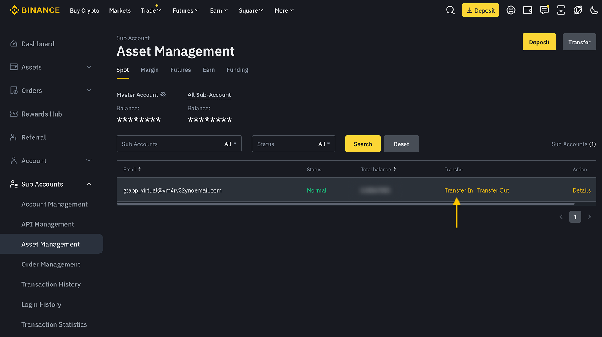
- A Binance transfer window will open.
- Select where to transfer funds from (for example, your Main Spot Account).
- Select where to transfer the funds to — your Sub Account and the account type (Spot or Futures, depending on the strategy you plan to run). If you want to fund the Futures account, select USDⓈ-M Futures.
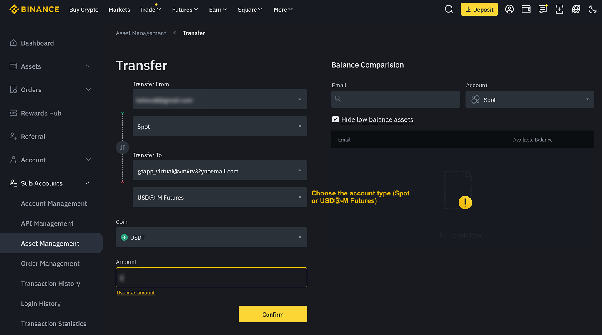
- Enter the amount and click Confirm.
Once confirmed, your Spot or Futures balance will appear in GT APP under Connected Exchanges.